What Is BIOS Boot Order? A Complete Guide to Startup Priority
Your computer hums to life, but instead of your desktop, you see a black screen or the wrong operating system. That jolt of frustration hits hard. The culprit is almost always a scrambled startup sequence. Grasping what is BIOS boot order hands you the power to fix this in seconds—no panic, no costly repair shop.
Why Your Computer’s Startup Sequence Dictates Everything
Every time you press the power button, your machine runs a hidden checklist. It does not simply “know” which drive holds your operating system. It follows a strict priority list. That list is the boot order. If the first device in line has no bootable system, you get errors or endless loading. A correct sequence eliminates guesswork and keeps your daily workflow smooth.
Intel’s firmware documentation confirms that the boot order sits inside the BIOS (or UEFI) as a user‑defined rule. When you understand what is BIOS boot order, you control exactly which storage drive, USB stick, or network source wakes up first.
Breaking Down the Startup: POST, BIOS, and the Boot Handoff
Startup is a three‑act play.
- Power‑On Self‑Test (POST): The motherboard checks RAM, keyboard, and essential hardware.
- BIOS/UEFI Initialization: Firmware scans the stored boot order list.
- Handoff to Bootloader: Control passes to the master boot record or EFI system partition on the chosen device.
If you ever wondered what is BIOS boot order in practical terms, it is the routing map that tells the firmware, “Look here first, then here, then here.” Even a perfect Windows installation remains invisible if the map points to an empty DVD drive.
What Exactly Is BIOS Boot Order? (And Why It Is Not Just a Setting)
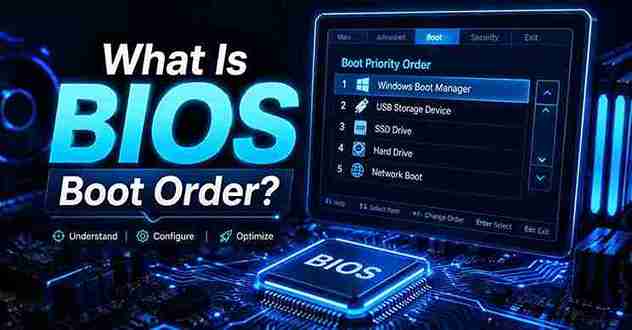
BIOS boot order—often called boot sequence or boot priority—is a ranked list of hardware devices saved in the motherboard’s non‑volatile memory. It dictates the order in which the firmware searches for a bootloader.
Think of it as a VIP list for your disks.
- Position 1: Usually your main SSD with Windows or Linux.
- Position 2: USB drives for recovery or installation.
- Position 3: Network boot (PXE) for enterprise deployments.
This is the core answer to “what is BIOS boot order.” It is not a hidden complexity; it is a simple lineup you can rearrange in under two minutes.
UEFI vs. Legacy BIOS: How the Boot Order Changes
Modern PCs use UEFI firmware, while older machines rely on legacy BIOS. Both store boot order, but the interface and partition handling differ.
| Feature | Legacy BIOS | UEFI |
|---|---|---|
| Boot mode | 16‑bit real mode | 32/64‑bit with drivers |
| Partition table | MBR only | GPT (supports disks over 2 TB) |
| Boot menu access | F2, Del, F12 | Same keys, plus Windows Advanced Startup |
| Boot order storage | CMOS | NVRAM with Secure Boot options |
UEFI lists boot entries by descriptive names (like “Windows Boot Manager”) rather than just “Hard Drive.” This makes it easier to identify devices, but the underlying concept of what is BIOS boot order remains identical. The UEFI Forum specification outlines this priority list as the “Boot####” variables.
How to Enter the BIOS Setup Utility
Access varies by manufacturer, but these keystrokes work on most desktops and laptops.
- Shut down your computer completely.
- Turn it back on and immediately start tapping the correct key.
- Dell: F2 or F12
- HP: F10 or Esc
- Lenovo: F1, F2, or Novo button
- ASUS: F2 or Del
- Acer: F2
- If you miss the window, restart and try again.
Microsoft Support recommends using “Advanced Startup” in Windows 10/11: hold Shift while clicking Restart, then navigate to Troubleshoot > UEFI Firmware Settings.
Step‑by‑Step: Changing the Boot Order Safely
Once inside the BIOS setup, follow these steps. Exact menu names vary, but the logic is universal.
- Locate the Boot tab using arrow keys.
- Find the list titled Boot Priority, Boot Sequence, or Boot Option Order.
- Use the on‑screen instructions (usually +/− or F5/F6) to move your main OS drive to the top.
- Place USB or optical drives in secondary spots for troubleshooting.
- Press F10 to save and exit.
After the restart, your PC obeys the new hierarchy. This hands‑on demonstration cements exactly what is BIOS boot order: a flexible rulebook you rewrite anytime.
Common Boot Order Scenarios You Will Face
Booting from USB to Install an OS
Insert a bootable USB. Enter BIOS, drag USB to position one. Save, restart, and the installer launches. Return the main SSD to top after installation.
Booting from an Optical Disc
Place a CD/DVD at priority one. This is useful for old recovery disks or hardware diagnostics like MemTest86.
Network Boot (PXE)
In managed offices, network boot sits first to deploy system images. For home users, disable it unless you rely on network installations.
Each scenario reinforces the same truth: knowing what is BIOS boot order lets you adapt to any startup need without panic.
Rescue a “Boot Device Not Found” Machine Using Boot Order
A “boot device not found” error often means the boot order lost its primary drive. This happens after a CMOS battery replacement, firmware update, or accidental reset.
Immediate fix:
- Enter BIOS, check if your hard drive is detected.
- If yes, move it to the first slot.
- If no, reseat the SATA/M.2 cable and retry.
This is one of the most powerful examples of why understanding what is BIOS boot order matters. You skip expensive repairs for a 30‑second menu change. Lenovo’s support pages confirm this is the top troubleshooting step for boot errors.
Boot Order for Dual‑Boot Systems (Windows and Linux)
Running two operating systems demands a precise boot order. You typically want GRUB (Linux’s bootloader) or Windows Boot Manager to load first.
- Install Linux after Windows; GRUB detects Windows automatically.
- In the BIOS boot order, set the Linux drive as priority one if GRUB manages both.
- For side‑by‑side without a unified bootloader, use the boot menu key (F12) to select the OS at startup.
Dual‑boot stability hinges entirely on a clean understanding of what is BIOS boot order. A misconfiguration leaves you locked out of one system.
Security: Block Unauthorized Boots with Boot Order and Secure Boot
Thieves can bypass your login password by booting a USB Linux tool. Lock the boot order to stop this.
- Set the internal SSD as the only boot device.
- Remove USB and optical entries from the list entirely.
- Enable Secure Boot in UEFI to allow only signed operating systems.
- Password‑protect your BIOS to prevent changes.
This physical security layer turns what is BIOS boot order into a frontline defense. The UEFI Secure Boot standard ensures firmware validates each bootloader before execution.
Does BIOS Boot Order Affect System Speed?
A correctly ordered boot sequence shaves seconds off startup time. When the first device in the list holds the OS, the firmware hands over control instantly. Wrong order causes the firmware to wait for timeouts on empty drives—adding 10 to 30 seconds every boot.
Prioritize your fastest SSD in slot one. Skip scan delay for unused SATA ports. These micro‑optimizations stem directly from grasping what is BIOS boot order and making it work for your hardware.
Expert Tips to Maintain a Clean Boot Sequence
- After creating recovery media, remove USB from top priority to avoid accidental boots.
- Keep a written note of your working boot order before experimenting.
- Update your UEFI firmware from the manufacturer’s site to fix boot order bugs.
- Use the “Boot Menu” hotkey (F12, Esc) for one‑time boots without changing the permanent order.
These habits build confidence. Once you internalize what is BIOS boot order, it becomes a tool, not a mystery.
Frequently Asked Questions About BIOS Boot Order
What happens if I set the wrong boot order?
Your computer attempts to boot from a device with no operating system. You will see errors like “No bootable device” or a blinking cursor. Fix it by entering BIOS and moving the correct drive to the top.
Can I change the boot order without entering BIOS?
Yes. Most PCs have a one‑time boot menu key (F12, Esc, F9). This overrides the stored order for a single session. Permanent changes still require the BIOS setup.
How do I know which device is the correct boot drive?
Inside the BIOS, look for a drive name that matches your OS installation, such as “Windows Boot Manager,” “ubuntu,” or the SSD model number. If unsure, boot with only one drive connected.
Does BIOS boot order affect boot speed?
It does. An empty or slow device at the top forces the firmware to wait for a timeout. Placing the OS drive first eliminates unnecessary delays.
What is the difference between boot menu and boot order?
The boot order is the permanent priority list stored in BIOS. The boot menu is a temporary pop‑up triggered by a hotkey, letting you choose a device for that single startup without altering saved settings.
How do I reset the BIOS boot order to default?
Enter BIOS, find the “Load Optimized Defaults” or “Restore Defaults” option, usually on the Exit tab. Save and reboot. This wipes custom priorities and returns to factory boot sequence.
Take Ownership of Your PC’s Startup Right Now
A machine that starts exactly as you expect is not a luxury—it is a configuration you control. The moment you learn what is BIOS boot order, you eliminate chaotic black screens and boot failures from your life.
Share this guide with someone who dreads tech troubleshooting. Save it in your bookmarks. The next time a boot issue strikes, you will dive into the BIOS with confidence, not fear. Got a specific boot headache? Leave a comment below and let’s solve it together.